
Solution
Remove Any Object from a Room Photo — Cleanly
Trash cans, cables, the seller's dog — select it and it's gone, with the background rebuilt behind it.
Free 5 credits · No card required
Try it on your own photo
Free plan includes 5 credits · your photo’s geometry stays locked · results save to your account
1 · Upload your photo
The room photo from your listing or phone — straight-on or corner view works best.
2 · Fine-tune (optional)
Your photo’s camera angle and structure always stay locked — only the described edit happens.
Upload a photo to enable generation.
3 · Your images
01
Why object removal matters
Agents
One stray object drags down an otherwise perfect shot.
Homeowners
You can't un-own the treadmill in the corner for photo day.
Designers
Client photos come with distractions you need gone.
02
How it works
From upload to download — most renders finish in about a minute.
Upload
The photo with the offending object.
Select
Tap or brush the object; the mask snaps to its edges.
Remove
The object lifts out; walls, floor, and pattern rebuild behind.
Inspect
Zoom in — check for smears at the removal edge.
Repeat
Remove more objects one at a time.
Download
Export the clean version.
03
Prompt guide
Do this
- Remove one object per pass for the cleanest edges.
- Include the object's full shadow in the selection.
- Use well-lit originals.
Avoid this
- Selecting half an object; include all of it.
- Objects overlapping people's faces — keep edits honest.
- Asking to add anything; that's the addition tool.
“Remove the trash bin and its shadow from the corner.”
“Take the cables off the desk area.”
“Erase the wall clock; rebuild the wall behind it.”
04
Built for your role
Agents
- Listing-perfect shots without reshoots
- Personal items gone, privacy kept
- Fast per-photo cleanup
Homeowners
- Your home, its best version
- No staging gymnastics
- Private stuff stays private
Designers
- Clean bases for proposals
- Before/after clarity
- Distraction-free client photos
05
Under the hood
- Segmentation masks snap to object edges, shadows included.
- Inpainting reconstructs walls, floors, and repeating patterns.
- Single-object passes keep artifacts minimal.
- Heavy clutter is better served by the full empty-out tool.
Selling products online? Try AI Product Scenes →
06
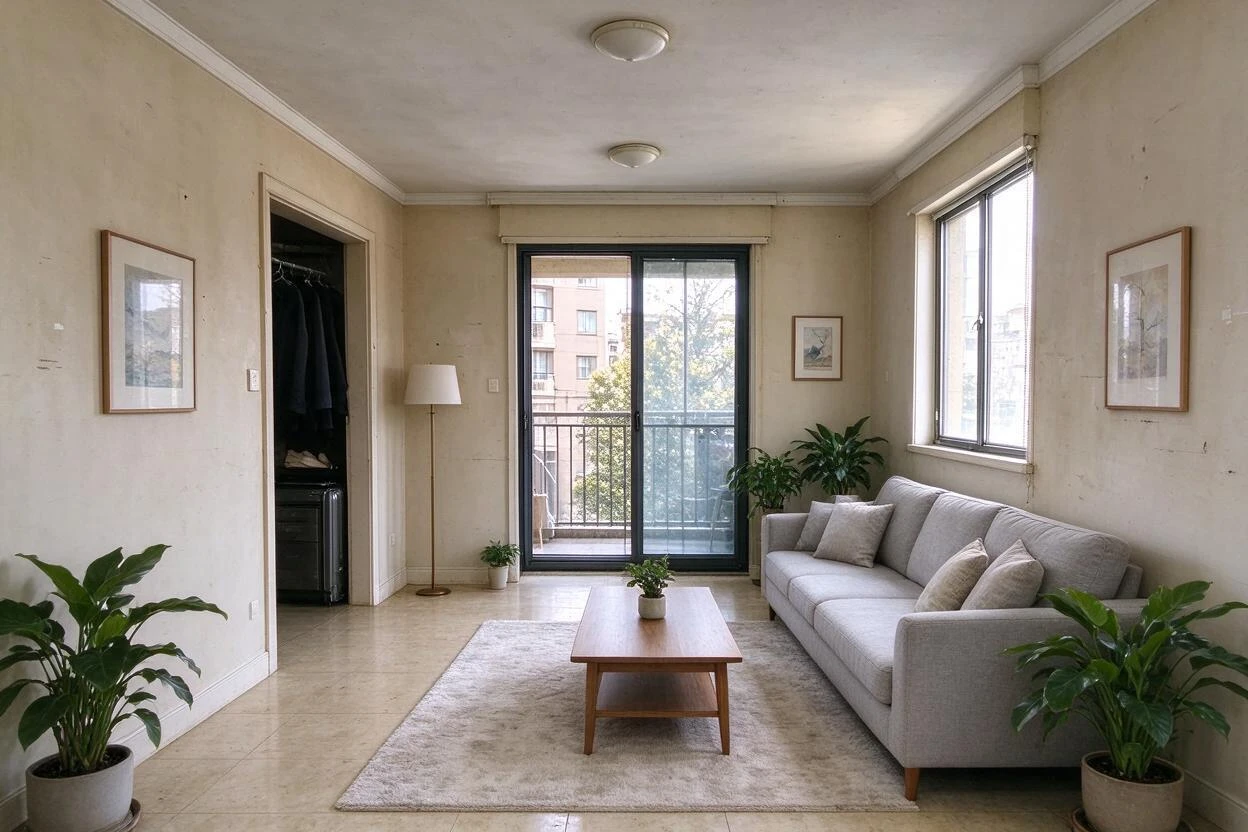
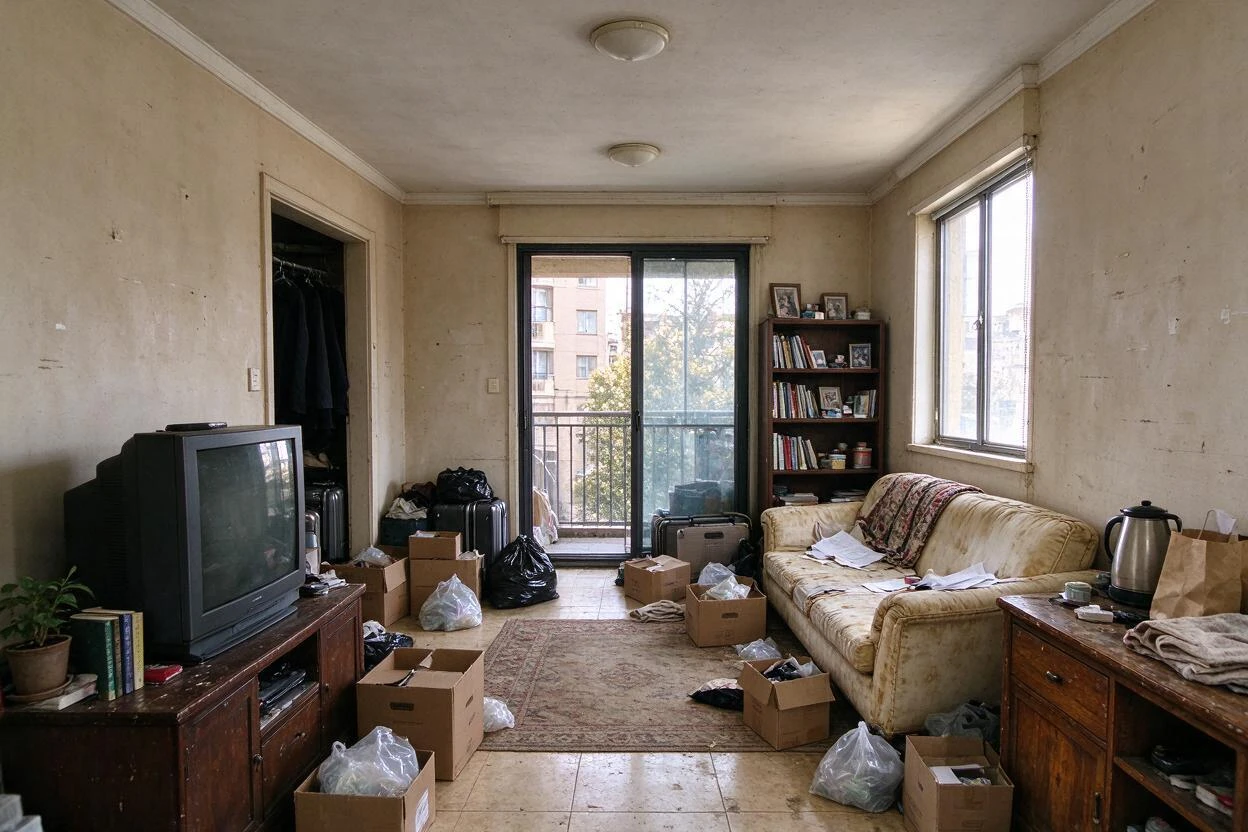
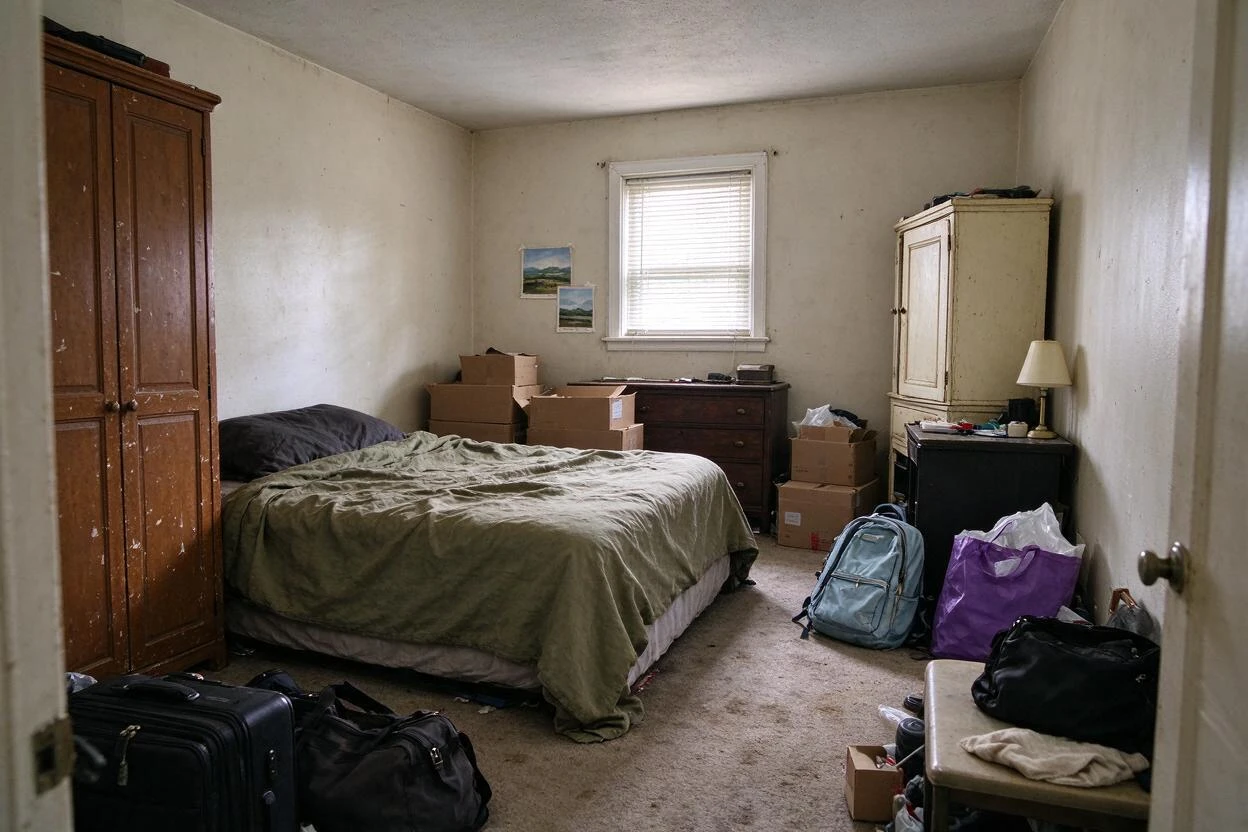
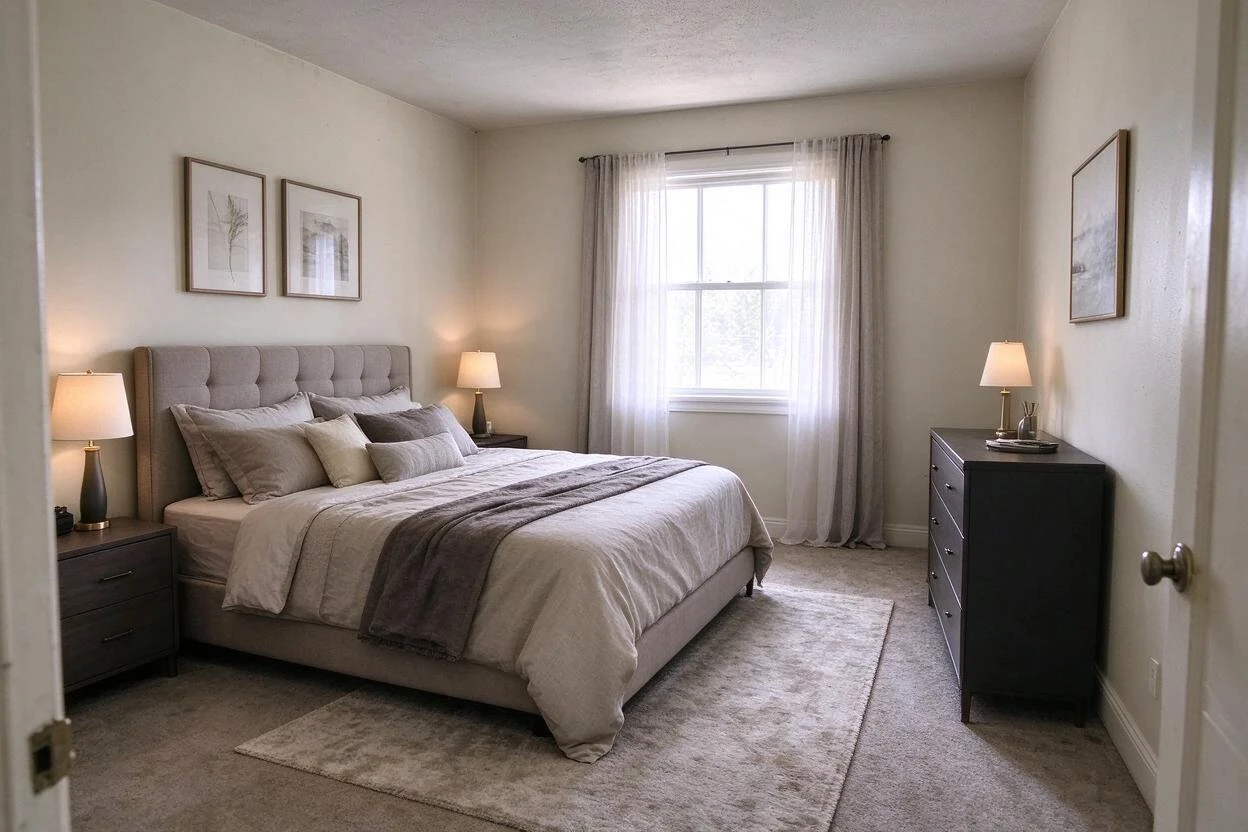
Object Removal Before and After Results
Drag each slider to compare the original photo with the AI result — every pair below was generated from a real room photo.
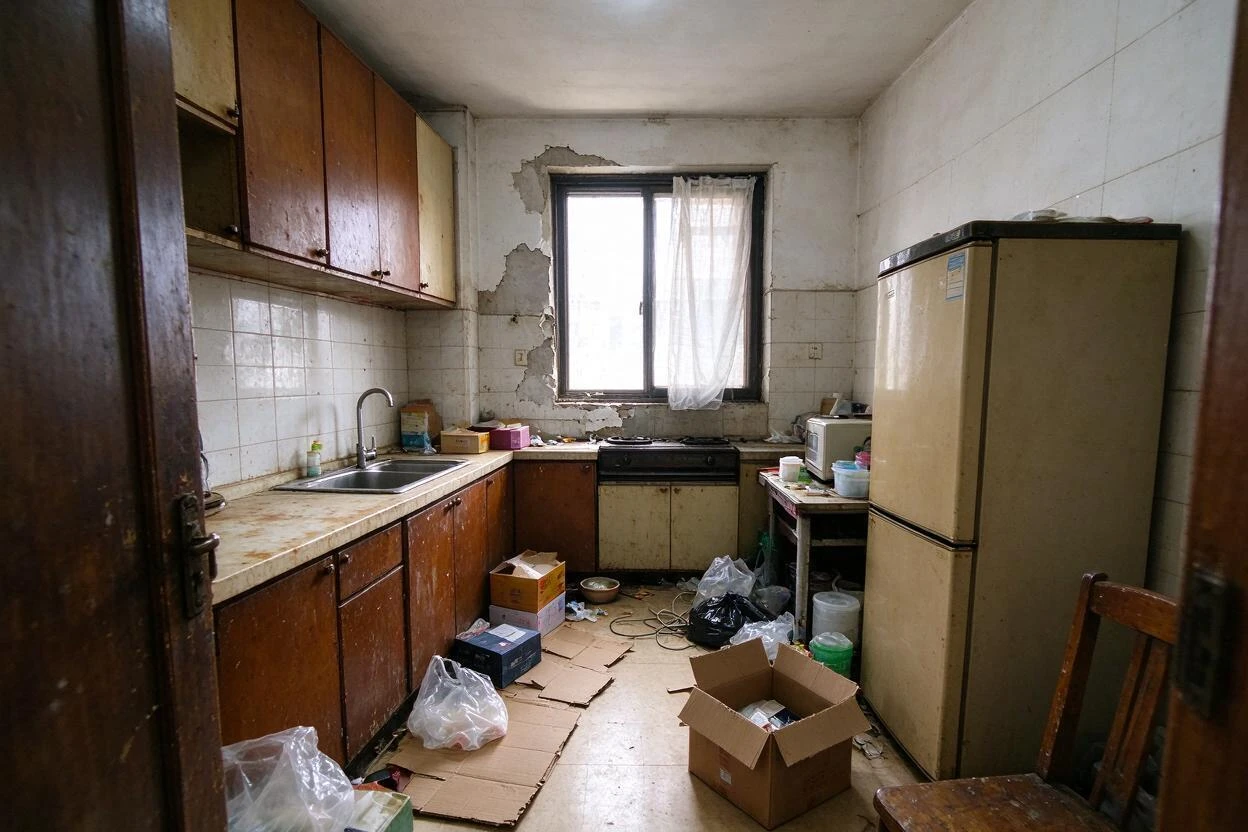
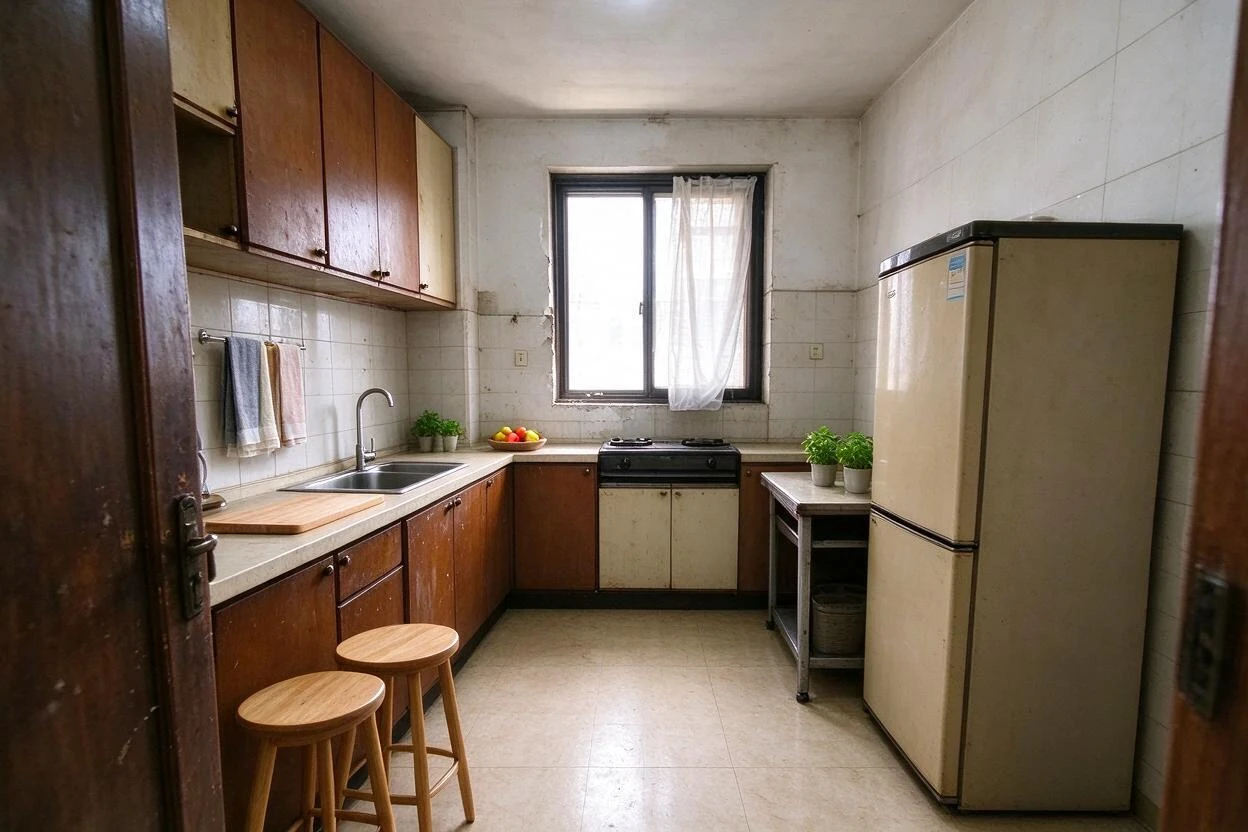
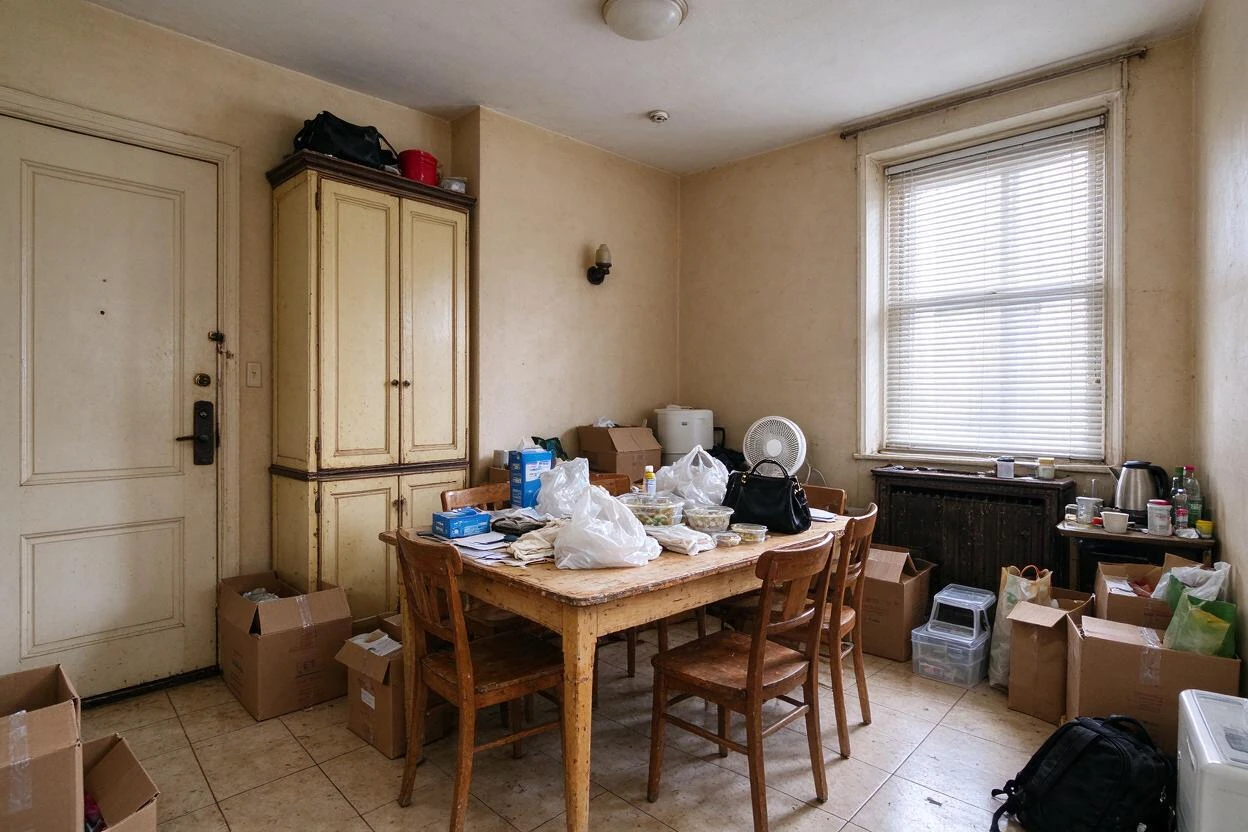
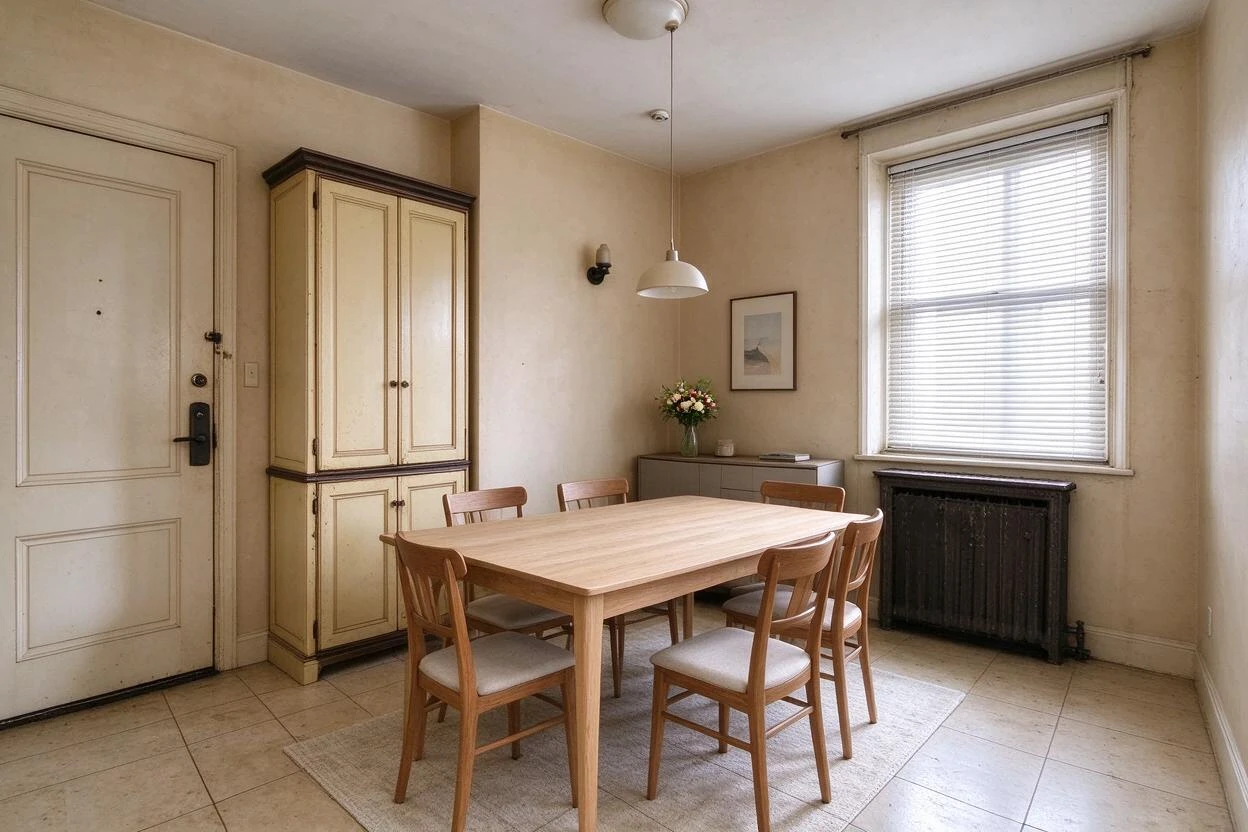
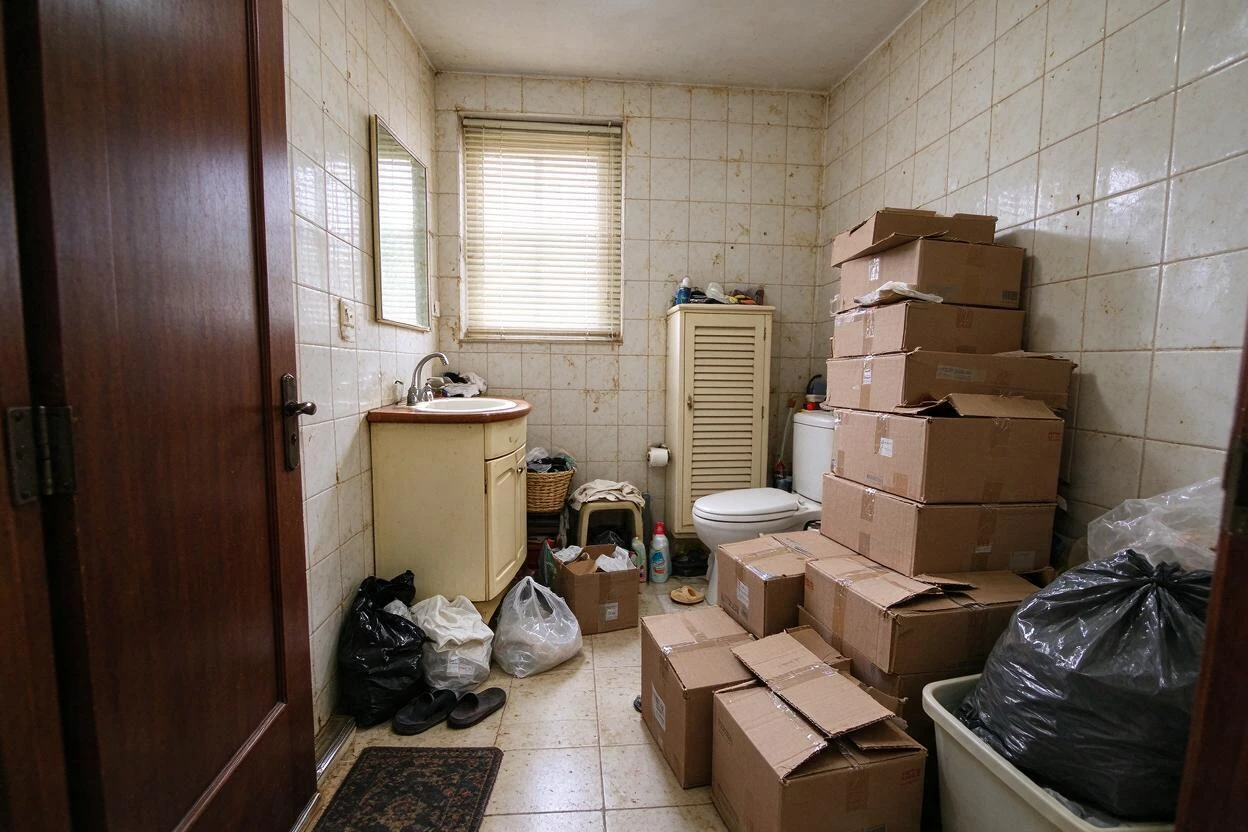
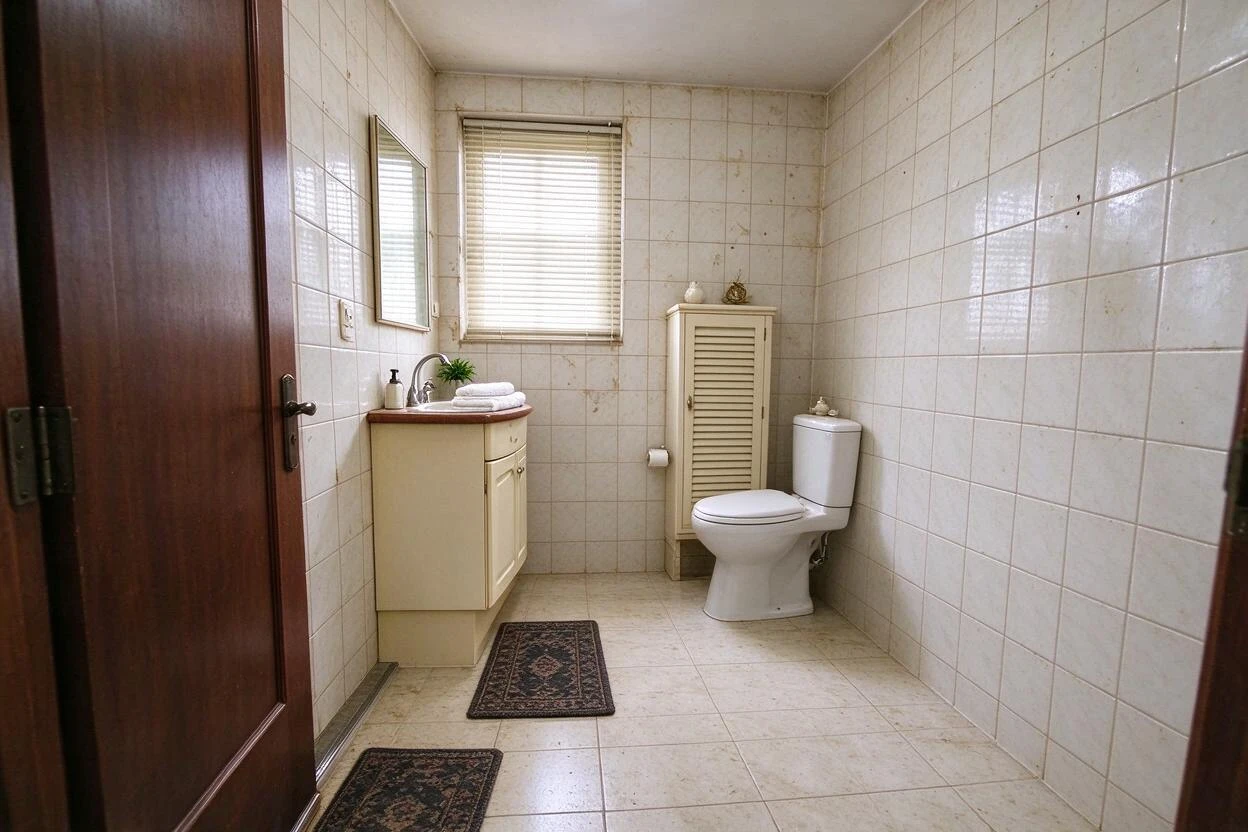
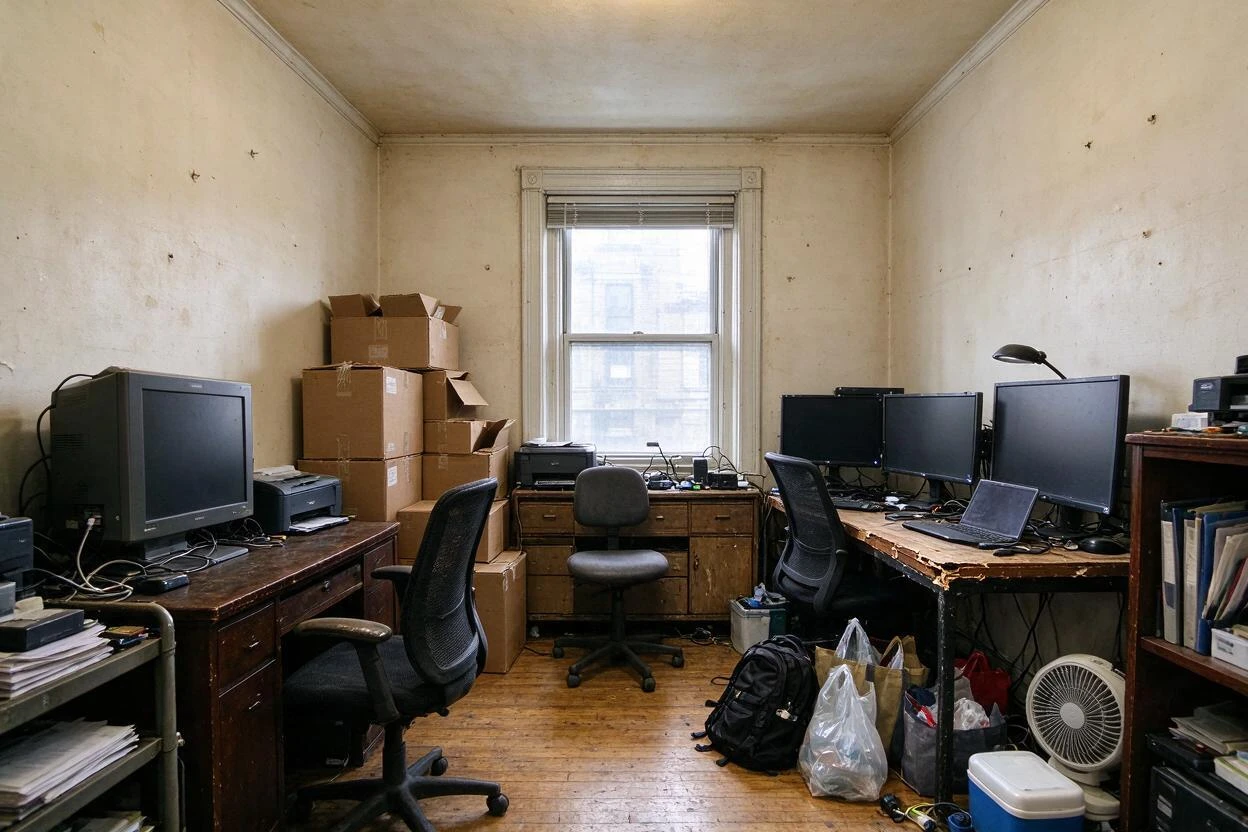
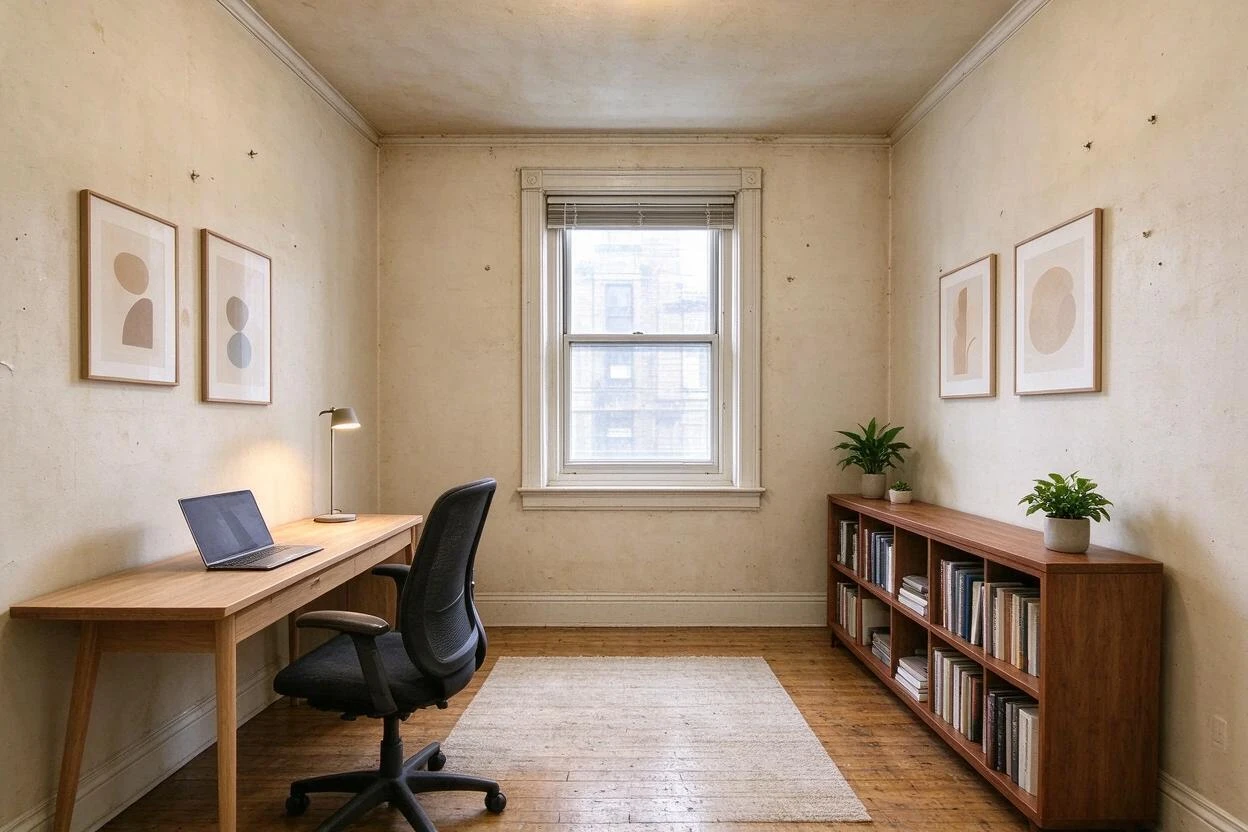
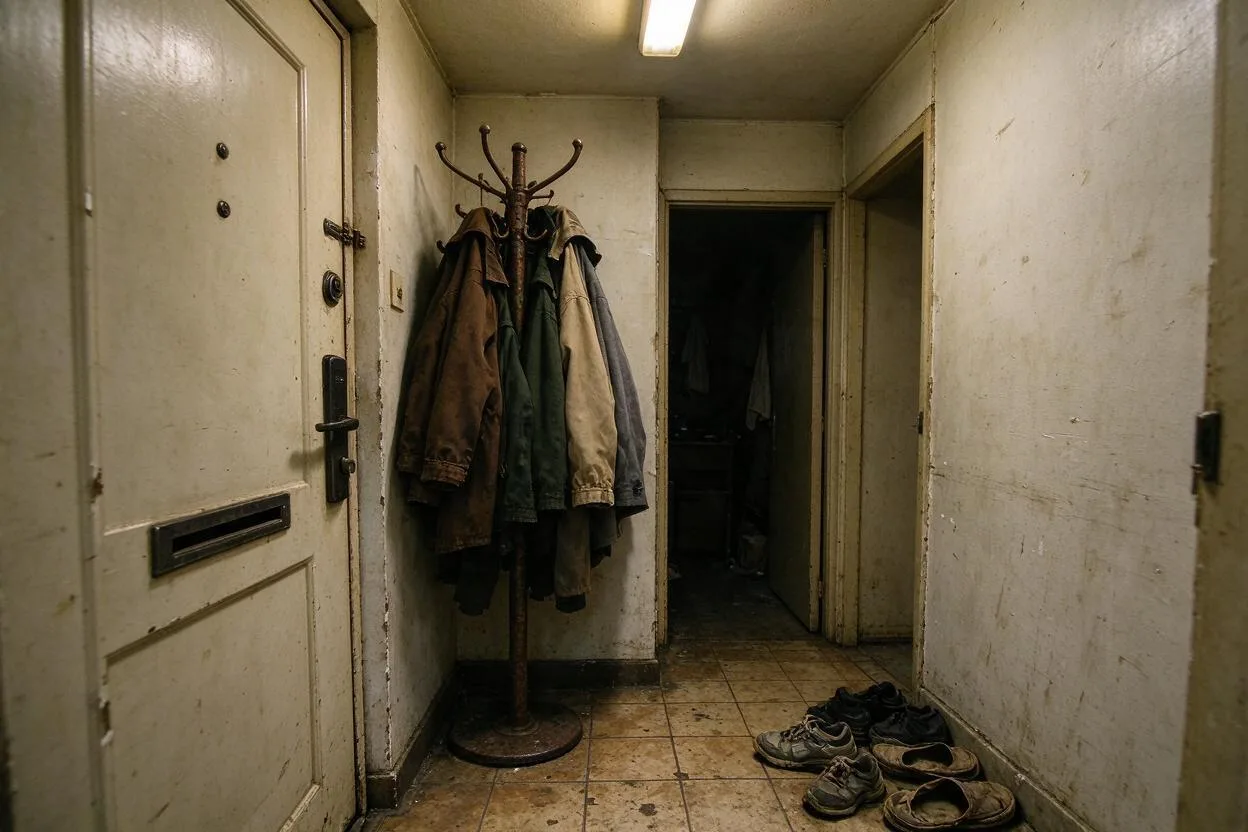
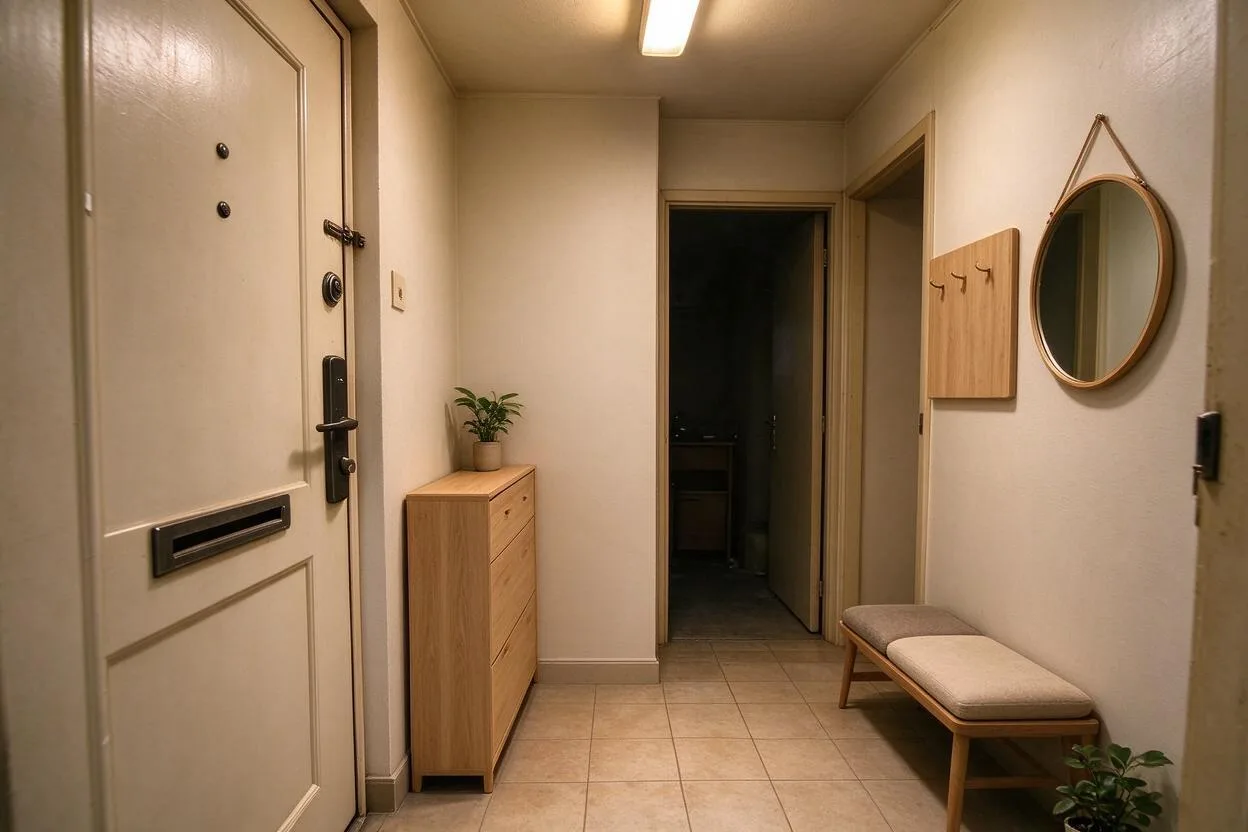
Showing 7 of 7 transformations
These object removal before and after examples were created with Goodesign: one photo in, a share-ready render out in about a minute.
07
FAQ
How is this different from Empty Your Space?
Object removal takes out selected items; Empty Your Space clears everything at once.
Can it remove outdoor objects?
Yes — bins, hoses, and parked items work well on exteriors too.
What about stains or wall marks?
Yes — select the mark and the wall rebuilds cleanly.
Will complex backgrounds smear?
Busy patterns are hardest; usually a second pass resolves stragglers.
Can I remove several objects at once?
You can, but one-per-pass gives the cleanest edges.
Is there a limit per photo?
No hard limit — each removal is part of the same generation session.
08
Related tools
Ready to see your room transformed?
Five free credits. No credit card. Your first render in about a minute.